Photo to Ghibli: How to Turn a Photo Into Ghibli-Style Art with AI
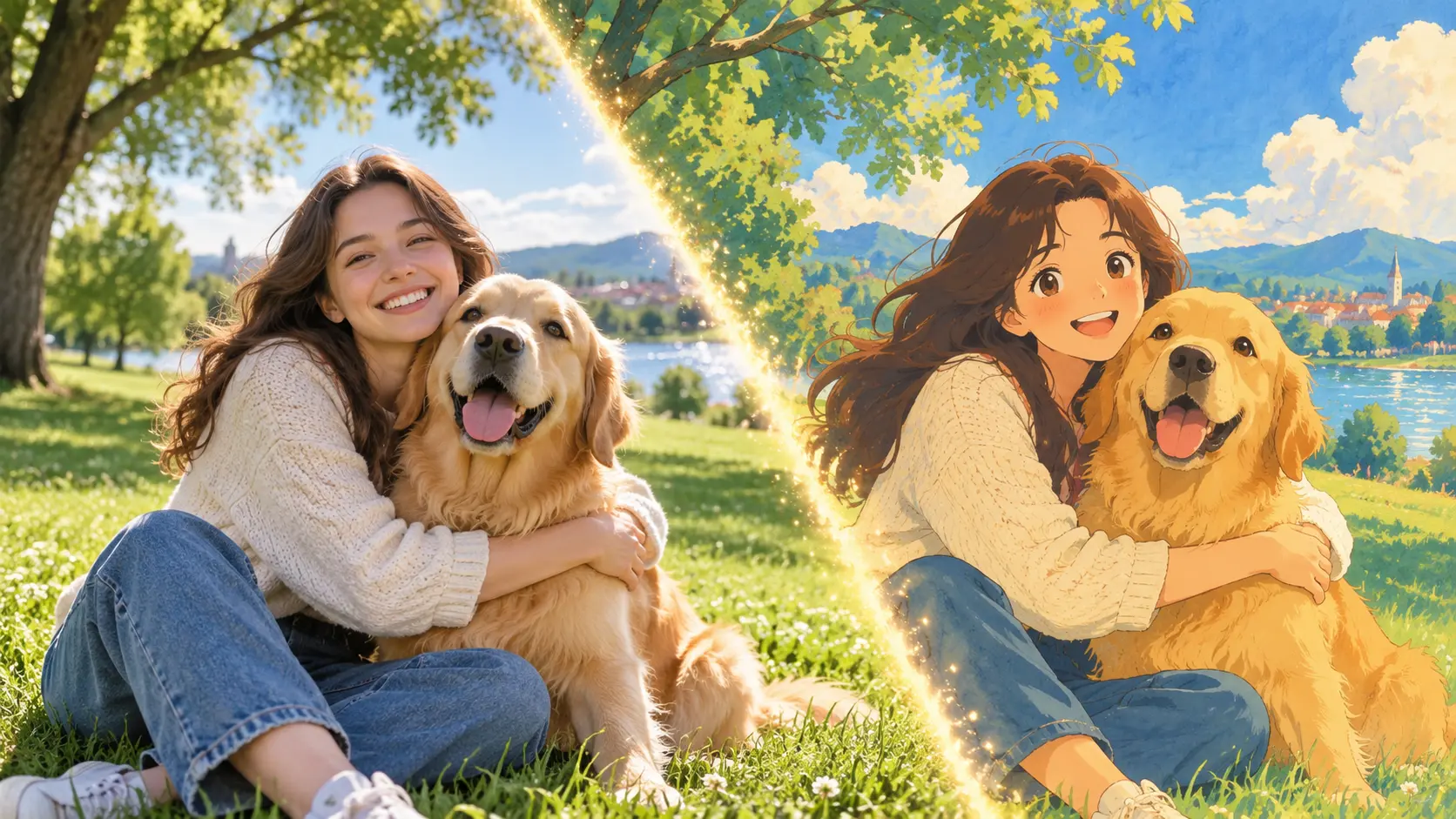
You can turn a photo into Ghibli-style art by uploading it to an AI image generator, choosing or describing a hand-painted anime style, and generating a redrawn version that keeps the original subject and composition. The whole process takes a few clicks and needs no drawing skills.
On Ghibli-AI.io, this happens directly in your browser: upload a photo, keep Default Ghibli Style, and click Generate.
How to Turn a Photo Into Ghibli Art, Step by Step
- Open Ghibli-AI.io and sign in. Sign-in uses your Google account. It works in desktop and mobile browsers, and there is no app to install.
- Upload your photo. Click the upload area or drag and drop a JPG, PNG, or WebP file.
- Pick a style mode. Default Ghibli Style transforms one photo with no prompt. Custom Style accepts several images and a description of up to 500 characters.
- Click Generate Ghibli Style. Each Ghibli-style image costs 3 credits, and new accounts receive free trial credits.
- Preview and download. The result appears next to your upload and is also saved to My History in your account.
- Refine if needed. Generate again for a new interpretation, or switch to Custom Style and describe what to keep and what to change.
Which Photos Work Best
Clear, well-lit photos with one obvious subject give the most reliable results.
- Portraits: a front or three-quarter view, with the face large enough to read clearly
- Pets: eye-level shots where the animal stands out from the background
- Landscapes: scenes with sky, trees, water, or hills, which suit the painterly look especially well
- Travel photos: streets, rooftops, and landmarks with clear depth
- Buildings: houses, shops, and interiors with simple shapes
Photos that are very dark, blurry, low-resolution, or heavily filtered are harder to redraw. So are crowded group shots where each face is small.
How to Preserve Faces and Composition
The default mode is designed to keep the pose and framing of your photo. To keep a face recognizable:
- Use even lighting, without hard shadows across the face
- Crop closer so the face is not a small part of the frame
- Avoid sunglasses, hands, or hair covering key features
- In Custom Style, state what must stay the same
A Custom Style prompt that protects the original might look like this:
Redraw this photo as a hand-painted Ghibli-style anime illustration. Keep the same pose, framing, hairstyle, clothing, and facial expression. Soft watercolor background, warm afternoon light.
Prompt Tips for Custom Style
Short, concrete prompts work better than long lists of adjectives. Describe three things: the style, what to keep, and the mood.
For a landscape:
Turn this landscape into a Ghibli-style painted background. Keep the layout of the hills and the river. Lush greens, fluffy cumulus clouds, gentle brushwork. Do not add people.
For a pet:
Redraw my dog as a Ghibli-style anime character. Keep the fur color, markings, and pose. Simple meadow background with soft daylight.
Stay within the 500-character limit, and change one thing at a time between runs so you can see what each change does.
Common Problems and Fixes
| Problem | Likely cause | Fix |
|---|---|---|
| The face changed too much | The face is small, angled, or poorly lit | Crop closer, use a better-lit photo, and add "keep the facial features and expression" in Custom Style |
| The result still looks like a photo | The custom prompt is too vague about style | Use Default Ghibli Style, or add "hand-painted anime illustration, soft watercolor background" |
| It looks like generic anime, not painterly | The style description is too broad | Add "soft watercolor textures, natural muted palette, detailed painted background" |
| The background changed | The original background is busy | Ask to "keep the background layout", or start from a simpler photo |
| Text or small details are distorted | AI models rarely preserve small lettering and logos | Crop them out, or add text afterwards in an editor |
| The request was blocked | Content moderation rejected the photo or prompt | Try a different photo or wording; blocked requests still use credits |
Photo to Ghibli FAQ
Can I turn a photo into Ghibli style for free?
Yes, you can try it for free. New accounts on Ghibli-AI.io receive free trial credits, and after they are used each Ghibli-style image costs 3 credits. Our comparison of Ghibli AI generators covers other free and paid options.
Does it work with group photos?
Yes, but faces need to be large enough to redraw. Photos with one to three people usually keep likeness better than large group shots.
Can I use a photo from my phone?
Yes. Ghibli-AI.io runs in the mobile browser on iPhone and Android, so you can upload from your camera roll and download the result on the same device.
Can I use the result commercially?
Paid plans and credit packs include a commercial license for the images you generate. The license does not include any rights to Studio Ghibli's characters, films, or trademarks.
More answers are in the Ghibli AI FAQ.